 Listicle
Are Digital Tools for Preserving Family Memories Worth It?
Last Updated: November 17, 2026
Quick Summary
Digital tools for preserving family memories are worth it because they capture fading photos and tapes, organize files with consistent names and metadata, store copies in more than one place, and record the voice and story behind each item. Keep the physical originals until the digital master is verified and backed up twice.
- Scan prints at 600 dpi and save TIFF masters, exporting JPEG copies for sharing.
- Work in batches of 50 or fewer, because fatigue causes skipped files and mislabeled scans.
- Follow the three-copy rule: master on an external drive, cloud backup, and a working copy.
- Verify backups quarterly by opening a random sample of files from each copy.
- This month, inventory one container, scan or send out ten items, and record one five-minute story.
Table of Contents
- What Digital Tools for Preserving Family Memories Actually Solve
- How to Preserve Old Photos Digitally Without Losing the Originals
- Digitizing Photos at Home: A Practical Setup That Works
- The Best Digitizing Service for Videos When You Have Reels and Tapes
- Digital Tools for Preserving Family Memories Free: What You Can Do at No Cost
- Organizing, Naming, and Backing Up a Digital Family Archive
- Capturing the Stories Behind the Files: Journals, Voice, and Guided Prompts
- Choosing Your First Step This Month
- Frequently Asked Questions
What Digital Tools for Preserving Family Memories Actually Solve
Digital tools for preserving family memories solve one problem above all: the physical record of a family disappears faster than anyone expects. Photos fade, tapes demagnetize, and the people who could explain the context pass away. Software will not fix grief, but it can stop the slow leak of evidence.
My Living Legacy Course is designed for families who want a structured way to pass down stories, wishes, and instructions alongside the files themselves. That distinction matters. A scanned photo is data. A scanned photo with a name, a date, and a paragraph about the day it was taken is a memory.
Here is what these tools genuinely do well:
- Capture physical media into durable digital formats
- Organize files with consistent names, folders, and metadata
- Store copies in more than one place so a single failure is not fatal
- Share access with relatives across generations
- Record the voice and story behind each item
If you are still weighing which archiving tools deserve your time, our roundup of the 7 best digital tools for archiving family photos compares the realistic options side by side.
How to Preserve Old Photos Digitally Without Losing the Originals
The single most common mistake is treating digitization as a replacement. It is not.
Follow this order:
- Inventory first. Count what you have and note condition. Skip nothing, even the damaged prints.
- Clean gently. A soft brush and a microfiber cloth. No water, no solvents, no tape.
- Scan at high resolution. For prints, scan at 600 dpi; for slides and negatives, go higher. Save as TIFF for the master file and export JPEG copies for sharing.
- Never write on the back of a print. Pencil on the sleeve, not the photo. Ink migrates.
- Store originals properly. Acid-free boxes, cool and dry, away from a basement or attic.
Watch out: scanning a print at low resolution and then discarding the original leaves you with neither a good copy nor the source. Always keep the physical item until the digital master is verified and backed up twice.
Digitizing Photos at Home: A Practical Setup That Works
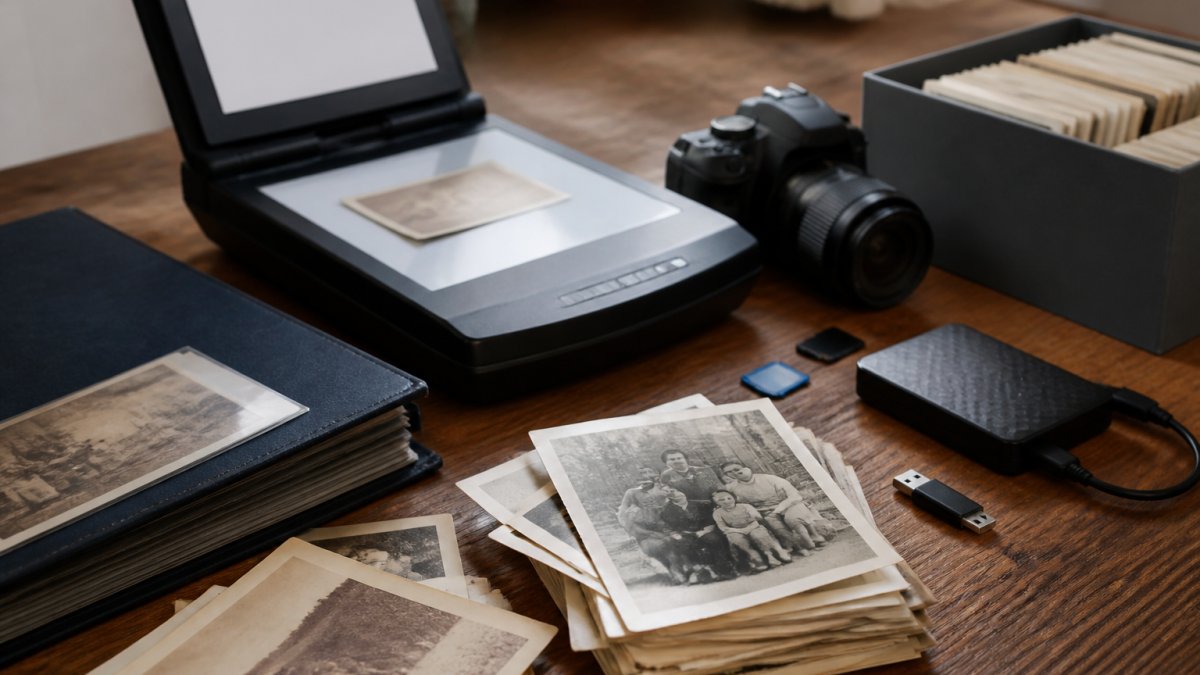
A flatbed scanner, a laptop, and a labeled folder system will handle most family collections. You do not need a professional lab for a shoebox of prints. You do need patience and a naming convention you will still understand in ten years.
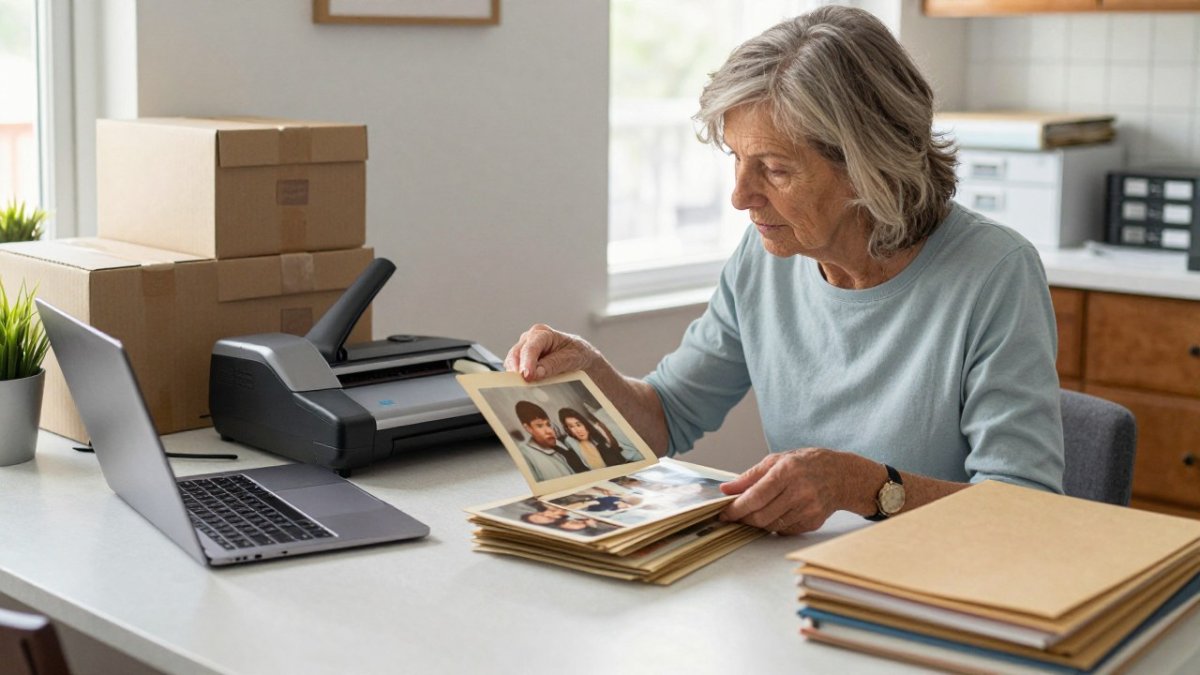
Set up in this order:
- Scanner: a flatbed model with at least 600 dpi optical resolution
- Software: whatever came with the scanner, set to save TIFF masters
- Naming:
1948-06_GrandpaJoe_Wedding_001.tifbeatsIMG_4471.tifevery time - Folders: one per decade, then per event
- Backup: an external drive plus one cloud copy, updated the same day
Work in batches of 50 or fewer. Fatigue causes skipped files and mislabeled scans, and a mislabeled scan is nearly impossible to fix later. Label as you go, not afterward.
The Best Digitizing Service for Videos When You Have Reels and Tapes
Reels, VHS, and camcorder tapes are a different problem. You cannot scan them at home, and the equipment that plays them is disappearing. A mail-in digitizing service is one option, and the key question is what format they return.
Ask every service three things before you ship anything:
- What master file do I receive? Insist on an uncompressed or lightly compressed master, not just a DVD.
- Do you return my originals? They must, and you should confirm it in writing.
- What happens to my tapes after the job? Get the retention and deletion policy in writing.
For a deeper walkthrough of the process before you commit, our step-by-step guide on how to digitize old family home movies covers equipment, shipping, and file formats in detail.
Digital Tools for Preserving Family Memories Free: What You Can Do at No Cost
You can build a solid archive without paying for software, but the free path has real limits you need to plan around. The free tier is a convenience layer, never your master archive. Below is a decision-ready look at what each free option actually gives you, what it costs you in trade-offs, and how to keep your originals portable when a service changes.
Your own computer's file system remains the most portable free tool. A strict folder structure and consistent naming cost nothing and export anywhere. Pair it with a free external-drive backup routine.
A word of caution on free tiers: storage limits and export tools can change over time. Before you commit a collection to any platform, it is sensible to confirm that exported files open correctly and to keep at least one copy of every original outside the platform.
For families ready to go beyond files and capture the stories, wishes, and instructions that sit behind them, My Living Legacy Course offers seven guided modules and more than 420 reflective prompts. It is built as a companion to your will, not a replacement for it.
Organizing, Naming, and Backing Up a Digital Family Archive
A digital archive is only as good as its structure and its exit plan. Consistent file naming, a predictable folder hierarchy, at least three copies in two locations, and a documented way to migrate everything are the standards that keep a collection usable for future generations.
Naming and metadata. Use this pattern: YYYY-MM-DD_LastName_FirstName_Event_Sequence. Add context in the file's metadata fields rather than only in the filename, because metadata travels with the file when it is moved or uploaded. Most photo tools let you write a caption, date, and location into the file itself; do that for every item you can.
Formats that last. Save master files in widely supported, non-proprietary formats: TIFF for scanned images, PDF/A for documents, WAV for audio masters, and a common video container such as MP4 with a widely supported codec for video. Export JPEG and MP3 copies for sharing. Avoid formats that only one application can open, and re-check your masters every few years to confirm they still open in current software.
The three-copy rule, in practice.
| Copy | Location | Purpose |
|---|---|---|
| Master | External drive at home | Untouched originals |
| Backup | Cloud storage | Off-site protection |
| Working | Shared folder or platform | Family access and editing |
Keep the master untouched. Do not edit, rename, or reorganize it during a sharing session; work from the working copy instead.
Verify backups, do not assume them. A backup you have never restored is a hope, not a backup. Once a quarter, open a random sample of files from each copy and confirm they play or display correctly. A common pattern is for a drive to fail silently for months before anyone notices.
Plan for portability and vendor shutdown. Before you store a collection on any platform, learn its export path. Google Takeout, iCloud data export, and most family-history platforms offer a bulk download, but the format and completeness vary. Download a full export once, open a sample of files, and write the steps into a plain text file stored with your archive. If a service changes or disappears, you will already know how to move your originals.
Document access for the person who inherits the job. An archive no one can open is not preserved. Write a one-page access sheet that lists where each copy lives, the account names, and how to reach the passwords through a password manager or a sealed letter. Do not put passwords in the same folder as the archive. Name a digital executor in your estate plan and tell that person where the access sheet is kept.
If you are structuring an archive specifically so heirs can find and use it, our guide on how to organize your digital legacy for your heirs walks through folder logic, access instructions, and what to leave behind for the person who inherits the job.
Capturing the Stories Behind the Files: Journals, Voice, and Guided Prompts
Files without context become anonymous. The story behind the photo is what your grandchildren will actually treasure, and it takes minutes to capture if you have a prompt to start from.
Three methods work well together:
- Journals: a written page per photo or event, dated and signed
- Voice recordings: a phone recording of a parent describing a photo is worth more than the photo alone
- Guided prompts: specific questions that unlock memory, such as "What did the kitchen smell like on Sunday mornings?"
If you are deciding how to record interviews, our comparison of tools for recording life story interviews versus phones covers what actually works for older voices and noisy rooms. For a broader approach to capturing memories, our 2026 guide to documenting family memories gives you a full framework.
A recording app is only as useful as the questions you ask. That is where structure beats technology every time.
Choosing Your First Step This Month
Pick one box, one album, or one tape. Not the whole house. Families who start with everything usually finish with nothing.
This month, do three things: inventory one container, scan or send out ten items, and record one five-minute story about the people in those items. That is a complete first pass, and it proves the workflow before you scale it.
At My Living Legacy Course, we built our program for exactly this moment, when the files are ready but the meaning is not yet written down. Our seven modules and 420+ reflective prompts guide you through your story, your wishes, and your final arrangements at your own pace. It is designed as a companion to your will.
The hardest part is not the scanner or the software. It is starting. Get started with My Living Legacy Course and give your family the clarity, stories, and instructions that no file format can carry on its own.
Frequently Asked Questions
What is the best way to preserve family memories?
The most reliable approach combines three things: physical originals kept in archival, acid-free storage; digital copies scanned at a high resolution and saved in open formats like JPEG or PDF; and a written or recorded story that gives each file context. Store at least three copies, with one in the cloud and one on a drive kept somewhere else. Tools help, but the habit of labeling and backing up matters more than any single app.
What is the 3-2-1 rule for digital preservation?
The 3-2-1 rule means keeping three copies of your files, on two different types of storage, with one copy stored off-site. For a family archive, that could be the original files on your computer, a backup on an external drive, and a third copy in cloud storage. If a drive fails or a platform closes, you still have your photographs, video recordings, and documents. Check your backups once or twice a year and replace aging drives.
Which free digital tools can help preserve family memories?
You can go a long way without paying. Free options include scanning apps on your phone for quick photo capture, free cloud storage tiers for backup, and free transcription tools for voice messages and oral history recordings. FamilySearch Memories is free to use for uploading photos and stories. Combine free tools with the 3-2-1 backup rule, and export original files periodically so nothing is locked inside one platform.
How do I organize and back up a digital family archive?
Start with a consistent folder structure by family line or decade, and name files with a date and the people pictured, such as 1962-06_Grandpa-Joe_wedding.jpg. Add metadata where your software allows it. Then back up: one copy on your computer, one on an external drive, and one in cloud storage. Write down the folder structure and passwords somewhere a family member can find, so the archive stays usable for future generations.