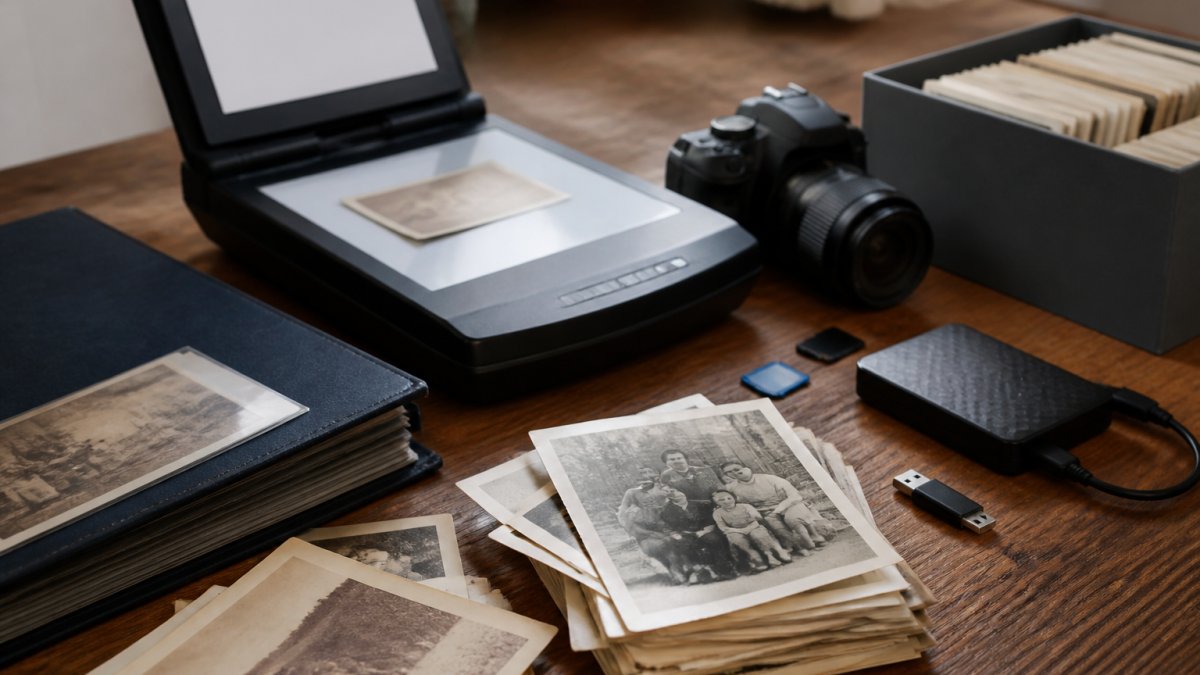
 listicle
7 Best Digital Tools for Archiving Family Photos
Last Updated: October 28, 2026
Quick Summary
The best digital tools for archiving family photos cover four jobs: scanning, organizing, backing up, and sharing privately. Google PhotoScan and Photomyne handle scanning, Adobe Lightroom Classic and ACDSee organize large collections, and Google Photos, Yogile, and Permanent.org provide cloud backup. Follow the 3-2-1 rule: three copies, two media types, one off-site.
- Google PhotoScan is free and built specifically for turning printed photographs into digital files.
- Adobe Lightroom Classic costs $11.99 per month and includes 1 TB of storage.
- ACDSee offers organizing tools for Windows at $179.99 as a one-time purchase.
- Yogile runs $44.99 per year for unlimited photos at original quality with guest access.
- Settle your file naming convention before importing thousands of images.
Table of Contents
- Quick Comparison: Best Digital Tools for Archiving Family Photos
- Best Photo Scanning Apps for Digitizing Old Photos
- Family Photo Organization Software for Sorting and Tagging
- Cloud Backup for Family Photos: Keeping Copies Safe
- Private Family Photo Sharing Without Public Exposure
- How to Choose the Right Tools for Archiving Family Photos
- Where Your Life Story Fits in the Archive
- Frequently Asked Questions
Quick Comparison: Best Digital Tools for Archiving Family Photos
Most families start this project with a shoebox and a phone, then discover the hard part isn't scanning. It's everything after: naming files, keeping copies safe, and making sure the right people can find them.
Archiving family photos means digitizing printed images, organizing the files, labeling them with names and dates, and storing copies in more than one place. The best digital tools for archiving family photos cover four jobs: scanning, organizing, backing up, and sharing privately. Below is a comparison, followed by a closer look at each tool and how to pick.
| Tool | Job It Handles | Pricing | Best For |
|---|---|---|---|
| Google PhotoScan | Scanning prints | Free | Phone-based scanning |
| Photomyne | Scanning prints | Not listed | Automatic photo detection |
| Adobe Lightroom Classic | Organizing | $11.99/month with 1 TB | Large collections |
| ACDSee | Organizing | $179.99 one-time | Windows users |
| Google Photos | Cloud storage | Free tier available | Searchable storage |
| Permanent.org | Cloud archive | Not listed | Family historians |
| Yogile | Cloud storage | $44.99/year | Shared family archives |
| FamilyPine | Scanning, organizing, sharing | Not listed | All-in-one private archive |
| Aura Carver | Displaying | Not listed | Showing photos at home |
| My Living Legacy Course | Capturing the stories | One-time fee | Recording the memories behind the photos |
Best Photo Scanning Apps for Digitizing Old Photos
Scanning is the entry point, and two apps do it well. Google PhotoScan is free and built specifically for turning printed photographs into digital files. It works on a phone, so there's no equipment to buy. Photomyne automatically detects photos during scanning and is described as quick, which matters when you're working through albums rather than single prints.
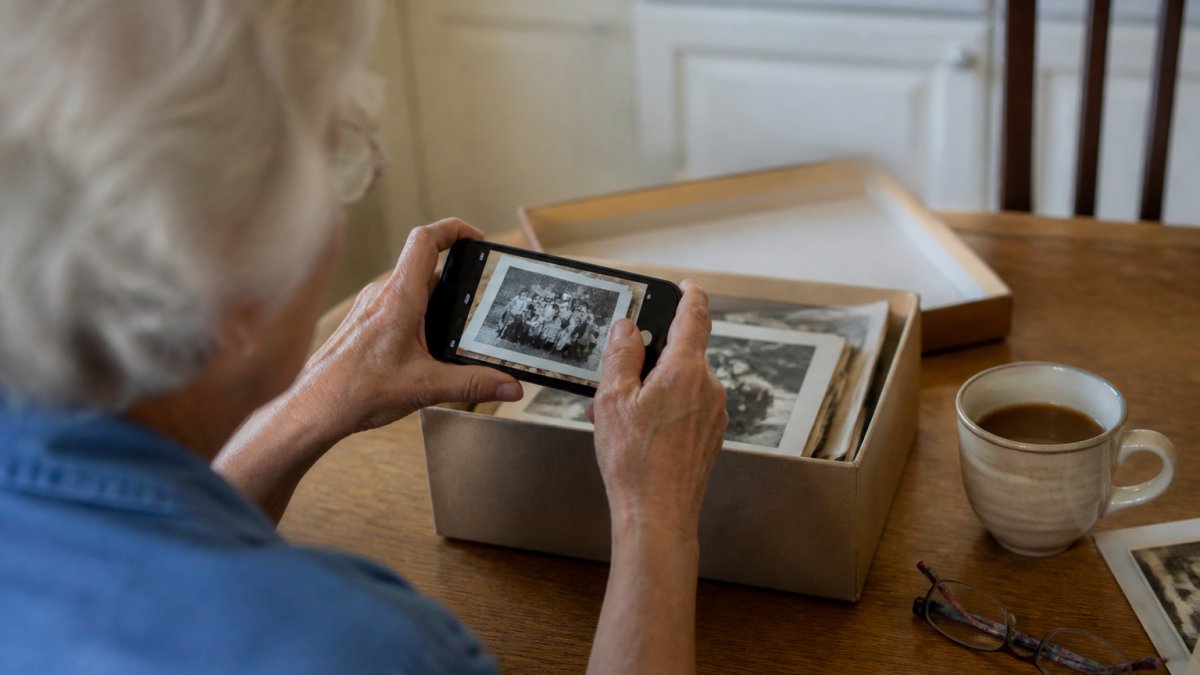
Start with PhotoScan if you want free and simple. Move to Photomyne if volume is the problem. Neither app is a complete archive, though, and that's the mistake most people make. For home movies sitting alongside those prints, our guide to digitizing old family home movies covers the conversion step by step.
Family Photo Organization Software for Sorting and Tagging
Organization is where collections live or die. Adobe Lightroom Classic is the strongest option for large libraries, listed at $11.99 per month with 1 TB of storage. It handles file naming, metadata, and sorting at a scale phone apps can't match. ACDSee offers similar organizing tools for Windows at $179.99 as a one-time purchase, which appeals to anyone tired of subscriptions.
A common mistake is importing thousands of images before deciding on a naming convention. Settle the format first, then import.
Cloud Backup for Family Photos: Keeping Copies Safe
A backup is not a backup if it lives in one place. Cloud storage protects against fire, flood, and drive failure, and it lets extended family reach the same files. But "upload it to the cloud" is where most guides stop, and it is where most family archives quietly fail. The working standard preservationists use is the 3-2-1 rule: at least three copies of every file, on two different types of media, with one copy stored off-site.
Google Photos offers a free tier with smart search, which helps when you're hunting for a specific face or date. Yogile runs $44.99 per year for unlimited photos at original quality, plus guest access without requiring an account. Both are reasonable cloud legs of a 3-2-1 plan, but neither replaces the local copies.
Build the backup as a workflow, not a one-time upload
A backup you have never restored is a hope, not a plan. Treat it like a short recurring routine:
- Name and folder first. Finish your file-naming convention and folder structure before the first backup, so every copy stays in sync. Renaming later means re-uploading everything.
- Copy to the local drive. Use a drive large enough for at least double your current archive, since scans and future additions grow fast. Copy, then verify the file count and total size match the source.
- Copy to the off-site drive. Rotate it to a relative's home or a safe deposit box and bring it back on a schedule (quarterly is a common pattern) to refresh it.
- Upload to the cloud. Let the first upload run overnight; large photo libraries can take days on a home connection. Confirm the service is set to keep originals at full resolution, not compressed copies.
- Test a restore. Pick a random folder, delete it from your working drive, and restore it from each backup copy. If any copy fails, fix it before you trust it.
- Repeat the restore check on a calendar. Twice a year is a practical rhythm for most families.
Protect the accounts, not just the files
The backup is only as safe as the login. Use a password manager and a unique password for the cloud account, turn on two-factor authentication, and store the recovery codes somewhere other than the same phone. Name a trusted family member as an account recovery contact or legacy contact where the service offers it, so the archive is not locked away if the original account holder becomes incapacitated. Keep a written inventory of which service holds which files, the account email, and where the recovery codes live; store that inventory with your estate documents. Beyond securing the digital files themselves, these organized archives provide the perfect foundation for creating meaningful personalized family keepsakes that celebrate your shared history.
The physical side of the same job is covered in securing family heirlooms and historical documents, and the checklist in the next section turns this into a routine you can actually keep.
Private Family Photo Sharing Without Public Exposure
Privacy is the part most guides skip, and it is the part that decides whether an archive survives contact with a large family. A public link is not sharing; it is publishing. Before you invite anyone in, decide four things for every person: can they view, can they download, can they add or edit, and can they inherit the archive later. Most tools let you set the first two; far fewer handle the last two well.
FamilyPine combines digitizing, organizing, and sharing in one private family archive. Permanent.org is a cloud-based archive built for family historians who want preservation rather than a social feed. Aura Carver is a digital photo frame, useful for displaying favorites at home, but it is not a backup and should never be the only place a photo lives. When you compare any of them, ask the same questions:
- Accounts, not links. Does access require a named account, or can anyone with a URL open the album? Prefer named accounts with per-person permissions.
- Download and export. Can a family member export the original files and the metadata, or only view compressed copies inside the app? If export is missing, you are renting your archive.
- Contribution rights. Can relatives add photos and captions without also being able to delete or reorganize the whole collection? Separate contributor and owner roles where the tool allows it.
- Inheritance and succession. What happens to the archive if the owner dies or becomes unable to manage it? Look for a legacy contact, a successor-owner setting, or a written plan for handing over credentials through your estate documents.
- Sensitive material. Decide in advance which photos are restricted, medical images, documents with account or ID numbers, pictures of living minors, and keep those in a separate, more tightly permissioned folder rather than mixed into the general family album.
FTC guidance on protecting personal information is worth reading before you upload anything sensitive, and the export checklist in the next section shows how to keep the archive portable if a service changes its terms or pricing.
How to Choose the Right Tools for Archiving Family Photos
Match the tool to the collection, not the other way around. A few hundred prints need a scanning app and a cloud account. Tens of thousands of images need real organizing software and a documented backup routine.
- Scan in the highest resolution you can manage
- Use one file naming convention: year-month-day and names
- Add metadata and captions while memories are fresh
- Keep three copies: local drive, cloud, and one off-site
- Set permissions before sharing with extended family
- Export originals so you're never locked into one platform
Library of Congress guidance on digital preservation recommends open, widely supported file formats for long-term storage. A broader guide to documenting family memories shows how photo archiving fits a complete family memory project.
Where Your Life Story Fits in the Archive
A photo without a story is just a file. My Living Legacy Course is our top pick for the piece no scanner can handle: the memories, wishes, and final arrangements behind the pictures. Seven guided modules and more than 420 reflective prompts help you capture your narrative at your own pace, with lifetime access. It's built as a companion to your will, not a replacement.
For capturing the stories once the photos are sorted, a roundup of apps for documenting life stories pairs well with this section, and a guide on writing a life story for future generations covers the drafting itself.
Frequently Asked Questions
What is the best way to digitally archive family photos?
A digital archive can combine three steps: digitize prints with a scanning app, organize files with clear names and dates, and store copies in more than one place. You could use cloud storage and an external hard drive. Start with the oldest or most fragile photos first, then work through albums in batches.
What are the best apps for organizing family photos?
For sorting and tagging, look at family photo organization software. The right choice depends on collection size and whether you prefer a subscription or one-time purchase.
How many backups should I keep of family photos?
Keep at least three copies in two different formats. Store the original scans on an external hard drive at home, keep a cloud backup for family photos, and consider a second drive kept off-site. This follows the common 3-2-1 rule. Check your backups twice a year to confirm files still open correctly.
What is the best way to share a private family photo archive?
Avoid posting family photos on open social media. Before sharing, consider who should be able to view or download images.
How can I preserve family photos for future generations?
Preservation means more than storage. Pair the digital archive with personal stories so future relatives have context for the photos. My Living Legacy Course is a guided program with seven modules and over 420 reflective prompts to help you organize and pass down your life story, personal wishes, and final arrangements.
The hardest part isn't the scanning. It's starting the conversation about what these photos mean and who should hear the stories behind them. My Living Legacy Course gives you seven guided modules, over 420 reflective prompts, and lifetime access for a one-time fee, so you can capture your narrative at your own pace. Get started with My Living Legacy Course and give your family the stories to go with the pictures.